Dual-SIM conflicts: fixing eSIM and physical SIM issues together

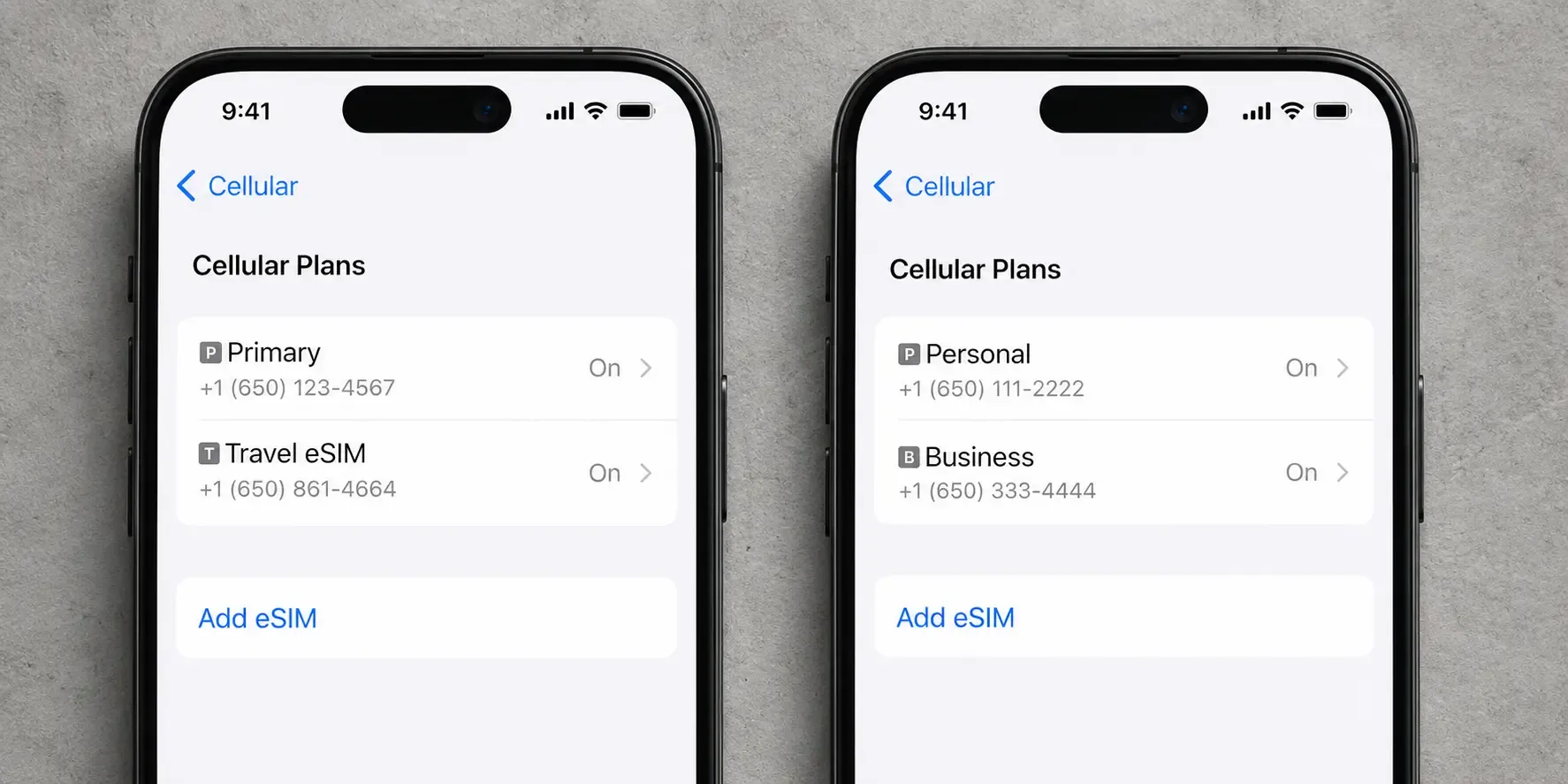
Most dual-SIM conflicts come down to one thing: your phone deciding which line handles data, calls and texts. Go to Settings → Mobile Data (Cellular on some iPhones, Mobile Network on Android), check the default line for cellular data and for calls and messages separately, then restart your phone so the changes fully apply. The common conflicts, and the fixes, below.
What are the most common dual-SIM conflicts?
Running an eSIM alongside your regular physical SIM is one of the biggest advantages of the technology. It does mean your phone now has to decide which line handles what, and that's where most dual-SIM issues come from.
- Data going to the wrong line: Your phone has one setting for which line handles cellular data by default. If it's still set to your home line, you could be using expensive home data abroad instead of your eSIM plan (or vice versa).
- Calls or texts on the wrong line: Outgoing calls and messages can default to whichever line is marked primary, separately from your data line setting.
- One line dropping unexpectedly: Some phones can only maintain one active data connection at a time, so the inactive line may briefly drop from the network while the other is in use.
- Verification codes and app logins: Apps that verify by SMS can send codes to whichever line is set as primary for messages, which can be confusing if it's not the number you expect.
How to fix it
- Check your default lines. Go to Settings → Mobile Data (Cellular on some iPhones, Mobile Network on Android) and check the default line for cellular data and for calls and messages separately. They don't have to match.
- Turn on automatic line switching. Enable "Turn On This Line Automatically" (or your device's equivalent) if you want your home line to reactivate automatically for calls while your eSIM handles data.
- Restart your phone. Line settings sometimes only fully apply after a restart.
- Check both lines are switched on. If one line keeps dropping, check that both lines have cellular data and voice enabled. A line with everything toggled off can appear to "conflict" when it's simply switched off.
If your eSIM shows signal but data still won't load, that's its own problem with its own checklist. Work through our signal-but-no-data fix guide. Still stuck? Contact support with your order number and we'll sort it out.
Frequently asked questions
- Yes. Most eSIM-capable phones run both lines simultaneously: keep your physical SIM for calls and texts and set the eSIM as your data line.
- Yes. Travel eSIMs are data-only, so your physical SIM, phone number, calls, texts and WhatsApp keep working as normal.
- Apps that verify by SMS send codes to whichever line is set as primary for messages. If codes are arriving on the wrong number, check which line is set as the default for calls and messages in your phone's line settings.
- Some phones can only hold one active data connection at a time, so the inactive line may briefly drop from the network while the other is in use. Check that both lines have cellular data and voice enabled before assuming a fault.
Settings sorted? Browse eSIM plans for your destination and your data's handled before you fly.
- Some phones can only hold one active data connection at a time, so the inactive line may briefly drop from the network while the other is in use. Check that both lines have cellular data and voice enabled before assuming a fault.

Get connected the moment you land
Prepaid data for your trip, ready before you board